
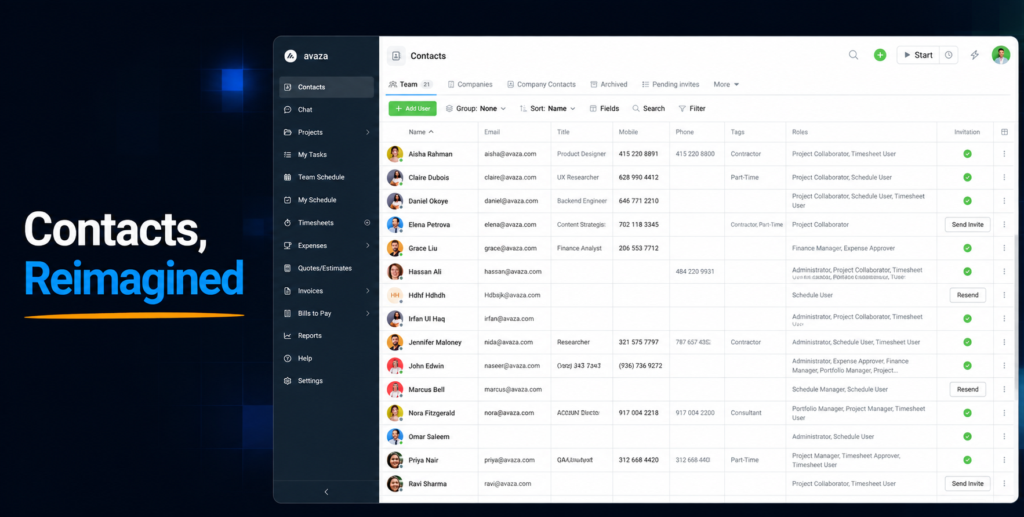
We’ve just rolled out one of the biggest upgrades yet to how you manage customers, suppliers and contacts in Avaza. The Contacts area has been rebuilt on our custom views engine, and clicking on any company now opens a brand-new Company page — a complete workspace that brings together everything about that customer or supplier in one place.
Here’s a tour of what’s new.
Custom Views Arrive in Contacts
If you’ve been enjoying custom views on your task and project pages — saved tabs with your own filters, grouping, sorting and column choices — that same power now extends to the Contacts area.
The Contacts section is now organised into four tabs:
- Team — your internal team members, exactly as before, now with the full custom views toolbar.
- Companies — a new, clean list of every company you work with. No more scanning a mixed list of companies and people; each company gets a single row with its key details, and one click takes you straight to its dedicated Company page.
- Company Contacts — all your external contacts, grouped by company by default, with quick filter chips for the things you check most often: Pending invites, Accepted, and more.
- Archived — archived team members and contacts together in one place, so nothing is ever lost.

On every tab you can group, sort, search, filter, and show or hide columns to build exactly the list you need — then save it as a view. Keep views private to yourself, or share them with your team so everyone works from the same picture. Tabs you don’t need can be hidden, and your setup is remembered every time you come back.
Introducing the New Company Page
This is the headline act. Previously, clicking a customer’s name took you to an edit form. Now it opens a full Company page — a tabbed workspace for that customer or supplier, with everything from contact details to invoices, timesheets and projects a single click apart.

A beautifully organised Details tab
The Company page opens on a redesigned Details tab that presents all of the company’s information in clear, scannable sections — Company Information, Financial Details, E-Invoicing identifiers, and Saved Payment Methods. Each section has its own Edit button, so updating a phone number or changing a default trading term is a two-second job in a focused popup, without wading through one long form.
Every entity, one company, your views
Alongside Details, the Company page gives you dedicated tabs for the records that matter for that company:

- Contacts — everyone at that company, with invitation status, roles and tags at a glance, and one-click invite sending.
- Projects — every project for the company, including archived ones (which you can restore right from the list).
- Invoices & Estimates — full history with status, dates, amounts paid and balances due.
- Bills — supplier bills, with paid amounts and outstanding balances.
- Timesheets & Schedules — time logged and upcoming bookings across all of the company’s projects.
- Expenses — every expense linked to the company’s work.
Each tab is a full list view with the complete custom views toolkit: filtering, grouping, sorting, search and show/hide columns. And because these are true custom views, you can save your own — add a second Invoices tab filtered to “Unpaid”, or a Timesheets tab grouped by team member, name them whatever you like, and share the useful ones with your team.
Best of all, your view setup follows you: configure your tabs once and they apply to every company you open. Only the data changes.
A dashboard for every company
Add the Dashboard tab for an at-a-glance visual summary of any company: unpaid invoice totals with aging breakdown, monthly sales and payments, recent projects, task progress across their projects, time and expense summaries — plus the new Company Uninvoiced Items widget, which shows billable time, expenses and fixed amounts you haven’t invoiced yet, project by project. It’s an instant answer to “what’s ready to bill for this client?”
Like our other dashboards, you choose which widgets appear and arrange them however you like.

Everything stays in context
Creating records from a Company page keeps you in that company’s world automatically. Add a project, invoice, estimate, bill, expense, timesheet, booking or contact from any tab, and the company is pre-selected for you — and project dropdowns show only that company’s projects. Less clicking, and no more entries accidentally landing against the wrong customer.
Every tab also has its own web address, so you can bookmark a specific client’s Invoices tab or paste a link to their Timesheets straight into a chat with a colleague.
What This Means for Your Existing Workflow
- Company and customer name links throughout Avaza now open the new Company page (landing on the Details tab). Your old bookmarks to customer details pages will redirect automatically.
- Editing company information works section by section from the Details tab — same data, much easier to find.
- Nothing about your existing data changes; this is a new way to see and work with what’s already there.
Available Now
The new Contacts area and Company page are live on all accounts today — just head to Contacts and click on any company to explore. As always, access follows your existing roles and permissions, so team members see only what they’re meant to.
We’d love to hear what you think, and which views your team ends up saving. Reach out to our friendly support team at any time via the in-app chat or support@avaza.com.
Happy organising!
— The Avaza Team