
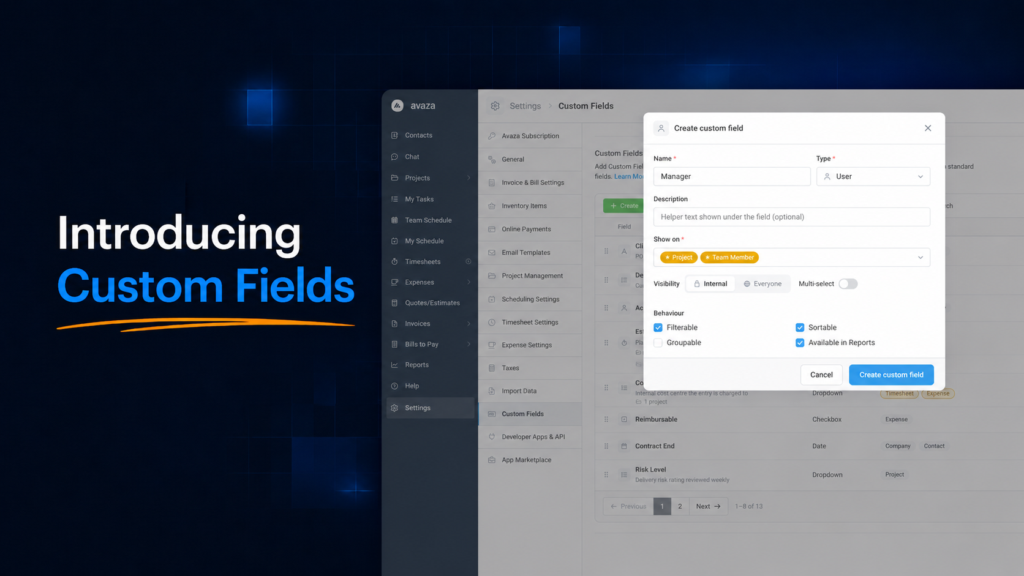
Every business tracks something unique. A marketing agency needs to know which campaigns are client-approved. A consulting firm tracks contract references and delivery risk. A software team lives by story points. Until now, that information lived in spreadsheets, task descriptions, or someone’s memory.
Today we’re excited to launch Custom Fields in Avaza — starting with Projects and Tasks, with more of Avaza to follow.

Your data, structured your way
Custom Fields let you add your own fields to projects and tasks, choosing from a rich set of data types:
- Short Text and Long Text — reference codes, scope notes, handover instructions
- Number, Percentage and Currency — story points, confidence scores, contract values
- Duration — time allowances like review time, entered as 1:30 or 1.5
- Date — go-live dates, review deadlines, contract end dates
- Checkbox — simple yes/no flags like “Client Approved”
- Dropdown — pick lists with your own options and colours, single or multiple selection
- User — point to a team member, like an Account Owner or Reviewers
- Location — pin a place with map coordinates, like a client site or meeting venue
Each field can carry a description that appears as helper text, so your team always knows what’s expected.

Set up once, use everywhere
Head to Settings > Custom Fields, flick the toggle on, and create your first field. You decide which modules each field appears on — Project, Task, or both — and whether it’s optional or required for each. Required fields can carry a default value, so the common case is filled in automatically and nobody gets slowed down.
Fields can apply to all projects or only the ones you select — so your development team’s “Story Points” field never clutters the accounts team’s projects.
See it in your lists, boards and filters
This is where Custom Fields earn their keep. Every field you create becomes part of how you view your work:
- Columns — add custom fields to your task and project lists via Show/Hide Columns. Dropdown values render as coloured chips, currency and durations are properly formatted, and each field is marked with its data-type icon.
- Filters — narrow any view by your own fields: show only High risk tasks, or projects going live this quarter.
- Sorting — order your lists by story points, contract value, or any field you choose.
- Grouping — group task and project lists (and boards) by a dropdown, checkbox or user field. On boards, your field’s options become the columns — and dragging a card between columns updates the value.
- Cards — board cards display your custom field values at a glance, with a “+ more” expander when there’s a lot to show.
You control which fields are available for filtering, sorting and grouping — so your views stay clean and relevant.

Keep internal information internal
Some fields are for your team’s eyes only. Each field has a visibility setting: Internal fields are visible to team members and never shown to customer contacts in the client portal, while Everyone fields are shared. Track “Delivery Risk” honestly, and share “Client Approved” openly — on the same task.

A few ideas to get you started
For agencies: Client Reference (Short Text), Client Approved (Checkbox, visible to everyone), Campaign Region (Dropdown: APAC / EMEA / Americas), Account Owner (User).
For consultancies: Contract Value (Currency), Contract End (Date), Delivery Risk (Dropdown: Low / Medium / High with colours), Reviewers (User, multiple).
For software teams: Story Points (Number), Confidence (Percentage), Skills Needed (Dropdown, multiple: Frontend / Backend / Design / QA), Review Time (Duration).
For field services: Site Address (Location), Go-Live Date (Date), Team Size (Number), Safety Briefing Done (Checkbox).

What’s next
Custom Fields are live now for Projects and Tasks on all task views — Project View, My Tasks and All Tasks — plus the All Projects page. We’ll be rolling Custom Fields out to more of Avaza over the coming months, so the information you capture can follow your work everywhere it goes.
Ready to make Avaza speak your language? Head to Settings > Custom Fields and create your first field — it takes about a minute.
Questions? Our support team would love to hear what you’re tracking — reach out via the in-app chat or support@avaza.com.