
Your Avaza data has never been more connected. A personal access token, a Zapier automation, a connected app, or an AI assistant talking to Avaza through MCP can all read, create, update, and delete records on your behalf. That reach is exactly what makes integrations and AI agents so useful — and exactly why a growing number of customers have asked us the same question: what stops someone, or something, from changing or deleting too much?
Today we’re answering that question with API Permissions — a new set of admin controls that let you decide precisely what can be done through the Avaza API, who can do it, and keep a full record of every change you make.

You’ll find it under Settings → Developer Apps & API Access → API permissions. It’s available to account admins.
Why we built this
Most of the time, API and AI-agent access is a good thing: it’s how your timesheets sync, your invoices flow into your accounting tool, and your AI assistant fetches the project status you asked for. But a token or an agent acting on a user’s behalf has historically been able to do anything that the user’s role allows — including bulk updates and deletes.
For teams handling client billing, sensitive project data, or large volumes of records, “anything the role allows” was too blunt. They wanted a guardrail: keep the integrations running, but put limits on the destructive, high-volume, or sensitive operations — without rewriting everyone’s roles. API Permissions is that guardrail.
Set your account-wide defaults
The heart of the feature is a simple grid. Avaza’s API is grouped into modules — Projects, Tasks, Time Tracking, Expenses, Quotes / Invoices / Bills, Customers & Contacts, Resource Scheduling, Users, Webhooks & Integrations, and more — and each module has four possible actions: Read, Create, Update, and Delete.

For every module-and-action combination, you choose one of three levels:
- Role-based — the default, and exactly how Avaza works today. Access follows each user’s existing role and permissions.
- Admins only — only account admins can perform this action through the API; everyone else is refused.
- Blocked — no one can perform this action through the API, regardless of role.
So you might leave most of your account on Role-based, but set Invoices · Delete to Blocked and Users Create to Admins only. The grid makes your whole API posture visible at a glance.
Tighten access for specific people
Account defaults cover the common case, but sometimes you need to go further for an individual — a contractor, a new hire, or a service account that should be kept on a short leash.

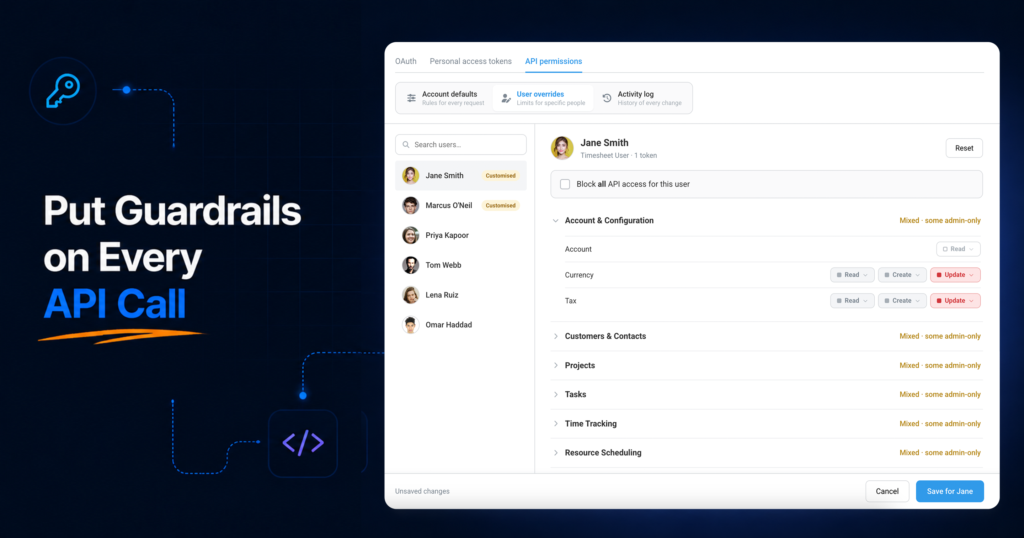
The User overrides tab lets you apply stricter rules to a single person. Pick a user from the searchable list (those with custom rules carry a “Customised” badge, so you always know who’s been adjusted), and set per-module overrides just for them. There’s also a single, decisive Block all API access for this user switch when you want to shut the door entirely — and a one-click Reset to account defaults to undo it.
Overrides can only ever make a user’s access more restrictive than the account default, never more permissive.
A complete, exportable audit trail
Security controls are only as trustworthy as your ability to see who changed them. The Activity log tab records every change to your API Permissions settings — each entry shows who made the change, a plain-language description, the before-and-after values, and a timestamp.

You can search and filter the log, and export it to CSV for compliance reviews or audit hand-offs. The log is append-only: entries can’t be edited or deleted, so it stands up as a reliable record of how your policy has evolved.
One principle worth underlining: these rules only ever restrict
API Permissions sits on top of your existing roles as an additional check. It can take access away, but it can never grant access a user’s role doesn’t already have. Practically, that means two reassuring things:
- Nothing changes until you change it. Every account starts on Role-based across the board, which is identical to today’s behaviour. Turning the feature on for the first time has zero effect until you set a rule.
- You can’t accidentally open a hole. Because the rules only subtract, the worst a mistake can do is over-restrict — which is easy to spot and easy to reverse from the same screen.
The same policy applies consistently across every channel: personal access tokens, AI agents over MCP, and connected third-party apps are all governed identically. There are no per-app loopholes.
Guardrails against bulk damage
The fear behind most of these requests wasn’t a single bad delete — it was a runaway script or agent deleting hundreds of records in a loop. So alongside the permissions grid, you can set a bulk-delete limit: cap how many deletes any one user can make through the API per hour. Cross the line and further deletes are refused until the window resets, containing the blast radius of an accident or a misbehaving integration.
Getting started
If you’re an account admin, head to Settings → Developer Apps & API Access → API permissions and take a look. You don’t have to change anything — the defaults match how your account works right now — but when you’re ready to tighten things up, the controls are there, the rules only ever restrict, and every change is logged.
We’d love to hear how you put it to work.