
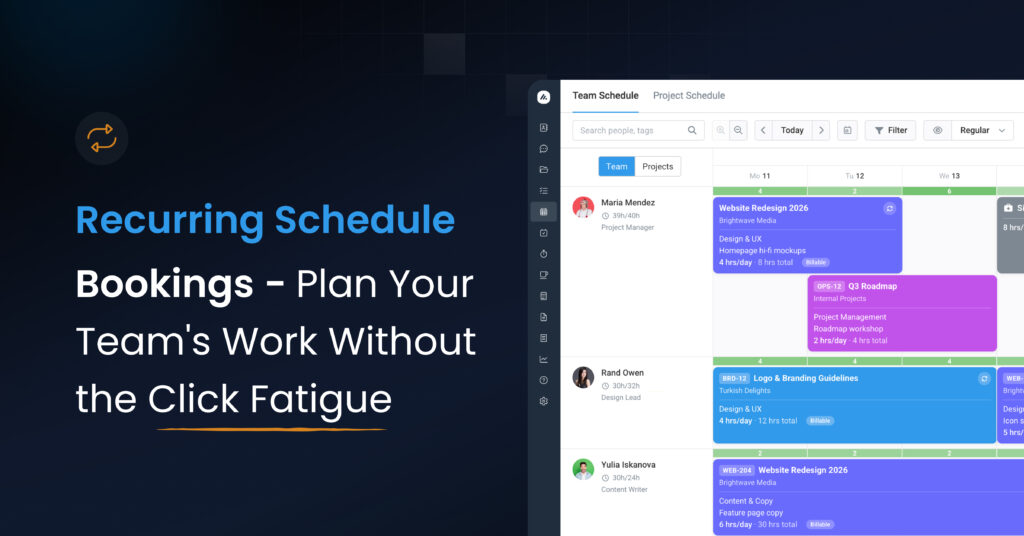
Recurring Schedule Bookings — Plan Your Team’s Work Without the Click Fatigue
If you’ve ever found yourself dragging the same booking across a calendar five Mondays in a row, you’ll want to read on. Resource Scheduling in Avaza now supports recurring bookings — schedule a team member’s work once and let it repeat on the pattern you choose.
This has been one of our most-requested features for the Schedule module, and we’re delighted to roll it out.
What you can do
Set up a booking that repeats on the schedule that matches the real work. A few of the patterns now supported:
- Weekly on chosen weekdays — every Monday and Wednesday, or just Fridays, or any combination.
- Monthly on a specific day — the 15th of every month, or the first Monday of each month.
- Yearly — annual planning blocks like a kickoff week or a year-end review.
- Multi-day occurrences — if each instance of the work spans several days (e.g., a two-day workshop every fortnight), that’s fully supported too.
- End the series your way — after a specific number of occurrences, or on a target date. You decide which terminator makes sense for the booking.

The Custom Recurrence dialog gives you a live preview of the dates the series will produce as you configure it, so there are no surprises. If your configuration produces overlapping occurrences or doesn’t match the chosen pattern, you’ll see a clear warning before you save.
Editing a recurring booking
Recurring bookings need flexible editing — sometimes you want to move a single occurrence, sometimes you want to change the rest of the series from a certain point onward, and sometimes you want to update the whole pattern. The Edit Booking dialog now gives you three clear options:

- This occurrence — edit just one instance without affecting the rest.
- This and following — apply your changes from the clicked occurrence onward, leaving earlier occurrences untouched. You can choose to affect all remaining occurrences or just the next few.
- Entire series — update every occurrence in the series.
Each option shows you up front exactly how many occurrences will be affected, so you can edit with confidence.
A few scenarios where this shines
Weekly project standups and team rituals. Block out every Tuesday morning for a project’s design review, every Friday afternoon for a retrospective, or every Monday for a planning session. Set it up once at the start of the project and it stays on the schedule as long as the team needs it.
Long-running engagements with fixed weekly time. When you’ve committed a team member to a client for 2 days per week for the next quarter, that’s a recurring booking. Configure it once with the right end date and the schedule accurately reflects the commitment week after week.
Quarterly planning blocks. If your team holds a 3-day planning offsite every quarter, set it up as a monthly recurrence on the second-to-last Wednesday with an occurrence that lasts 3 days. The next four quarters appear on the schedule and you’ve planned the year in under a minute.
Annual events. Conferences, year-end reviews, and onboarding bootcamps that happen every year on roughly the same week — yearly recurrence handles these cleanly. You can scope the series to as many years ahead as the team is planning for.
Recurring leave patterns. Recurring bookings also work for leave — schedule a recurring half-day every Friday, an annual leave block, or any other pattern that matches the team member’s working arrangement.
Multi-week sprint commitments. If a developer is allocated to a project for the next six two-week sprints, set up a weekly recurring booking starting on the first day of each sprint, with the occurrence lasting two weeks. The Schedule view reflects the full commitment at a glance.
What this changes for managers
The biggest practical change is how quickly you can plan ahead. Most teams have a stable core of recurring commitments and a smaller layer of one-off bookings on top. Until now, the recurring core had to be entered click by click. With recurring bookings, the stable layer goes in once — and any future changes (a moved client meeting, an extra week added to a sprint, a team member’s reduced hours from next month) can be applied to the right scope of the series without disturbing what’s already happened.
For project planning, this means clearer visibility further into the future without the data-entry tax. For team members, it means their Schedule view actually reflects their working pattern rather than a partial picture stitched together from manual entries.
Available now
Recurring Schedule Bookings is live for all Resource Scheduling customers — no setup or upgrade required. Open the Team Schedule, add or edit any booking, and you’ll see the new Repeat dropdown ready to go.
We’re already working on Phase 2 of the feature based on early feedback, including preset recurrence options (Daily / Weekly / Monthly / Yearly shortcuts that bypass the Custom dialog for common patterns) and richer reporting on recurring schedule utilisation. If you have feedback or use cases you’d like us to know about, we’d love to hear from you.
Happy scheduling.