
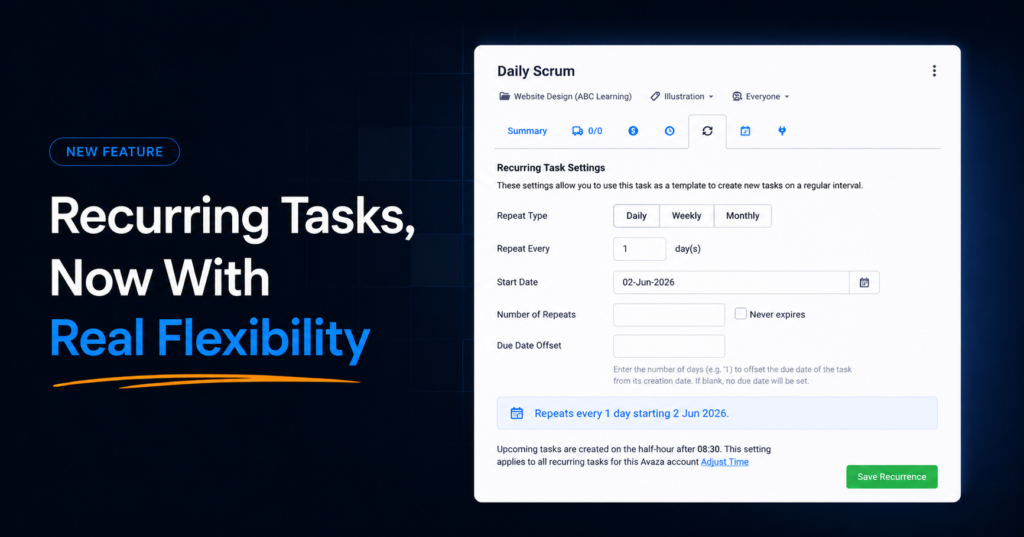
Recurring Tasks, Now With Real Flexibility
If you’ve used recurring tasks in Avaza, you’ll know how they work today: pick a frequency (days or months), enter a number, set a start date, and Avaza creates a new task every N days or every N months. Simple, reliable, and — for a lot of teams — not quite enough.
We’ve heard the same feedback for a while: real-world schedules don’t always fit into an “every X days” pattern. The Monday morning standup notes. The fortnightly sprint planning meeting. The third Friday retro. The last day of every month financial close. Until now, you’ve been forced to either pick the closest approximation or skip recurring tasks entirely for those workflows.
Today that changes. Recurring tasks now support weekly patterns with multi-day selection and monthly patterns based on a position within the month, on top of the existing daily and monthly-by-date options.
What’s new
When you open the recurrence tab on a task, you’ll now see a Repeat Type selector with three options: Daily, Weekly, and Monthly.

Daily works exactly as it always has — every N days from the start date.
Weekly is new. Pick how many weeks between cycles, then tap to select which days of the week the task should be created. You can pick one day, two days, all five weekdays, or any combination you like.
Monthly has been split into two patterns:
- A specific day of the month — the 15th, the 1st, the 28th, or whatever date you need. Choose every 1, 2, 3, or any number of months.
- A relative pattern — the first Monday of every month, the third Friday, the last Wednesday, and so on. These follow the actual position of the weekday within the month, so they shift correctly with the calendar.
Examples to make it real
Here are a few schedules that weren’t possible before, and the kind of task each one might be:
The MWF standup notes capture
You run a daily standup but only on weekdays. Repeat Type: Weekly. Repeat Every: 1 week. Repeat On: Monday, Wednesday, Friday. Never expires. Now your standup notes task appears in your project every Mon, Wed, and Fri automatically.
The fortnightly sprint planning meeting
Your team runs sprints on a two-week cadence. Repeat Type: Weekly. Repeat Every: 2 weeks. Repeat On: Monday. The task lands every other Monday — never on the wrong week, never missed.
The 15th-of-the-month timesheet review
You review timesheets mid-month, every month. Repeat Type: Monthly. Day 15 of every 1 month(s). Done. The same setup with “every 2 months” gives you the bi-monthly compliance check.
The end-of-month financial close
You need a task on the last day of every month — which means the 31st sometimes, the 30th sometimes, and the 28th or 29th in February. Repeat Type: Monthly. Day 31 of every 1 month(s). Avaza handles the short-month rollover automatically, so the task lands on the actual last day of each month.
The third Friday retro
Your team’s monthly retrospective falls on the third Friday — which is a different date every month, but always the same weekday position. Repeat Type: Monthly. The Third Friday of every 1 month(s). Avaza calculates the right date each month.
The quarterly leadership kickoff
Your leadership team meets on the first Monday of every quarter. Repeat Type: Monthly. The First Monday of every 3 months. Three meetings on the calendar each year, no manual upkeep.
A refreshed saved-state view
We’ve also given the saved recurrence view a quiet makeover. When you open a saved recurring task you’ll now see:
- A stats bar showing how many tasks have been created, when the last one was created, when the next one is coming, and the current status
- A pattern card that summarises the rule in plain English — “Repeats every Monday, Wednesday and Friday” rather than just a list of fields to mentally parse
- Three clear actions at the top right: Edit, Stop, and Delete
Stopping a recurrence pauses it without losing your configuration. You can resume it later from the same dialog. Deleting removes the schedule but leaves any tasks that were already created untouched.
Editing existing recurrences
The Edit action opens the same form, but with one rule: the Start Date is locked. Everything else is fair game — change the pattern, the interval, the number of repeats, the due date offset. When you save, Avaza recalculates when the next task will be created and shows you the new date before you commit, so there are no surprises.
Backward compatibility
Every existing recurring task continues to work exactly as it did. Your daily tasks are still daily. Your monthly tasks still land on the same day of the month they always have. Nothing changes for existing schedules unless you choose to edit them.
If you’ve been working around the old limitations by setting reminders elsewhere or creating tasks manually, now’s a good time to revisit those workflows and see if a smarter recurrence rule can take it off your plate.
We’re already thinking about what’s next for recurring tasks — yearly patterns, skip-weekend options, and exclusion dates are all on the list. As always, if you have a workflow you’d like to see supported, let us know.