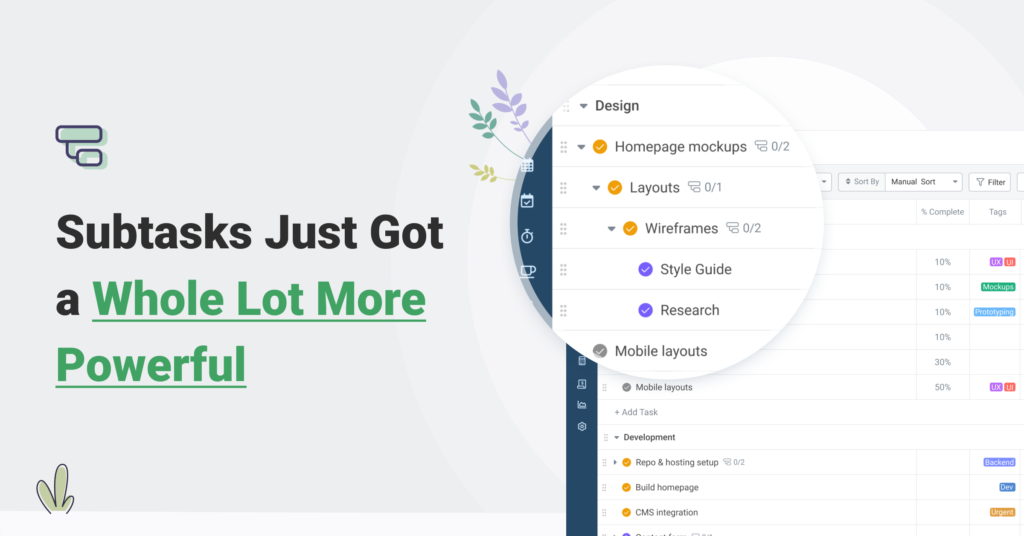
If you have ever wished you could assign a subtask to a team member, track time against it, or discuss it in comments — today is a good day. We have completely rebuilt how subtasks work in Avaza.
Subtasks in Avaza used to be simple checklist items. A title and a done/not-done toggle. Useful for breaking down steps, but they could not carry the weight of real work: no assignments, no time tracking, no comments, no scheduling.
That changes today. Subtasks are now fully featured tasks in their own right. Every capability that tasks have, subtasks now have too.
What's New
Here’s everything that’s new in subtasks — starting with the biggest changes:
Build a Full Task Tree with Unlimited Depth
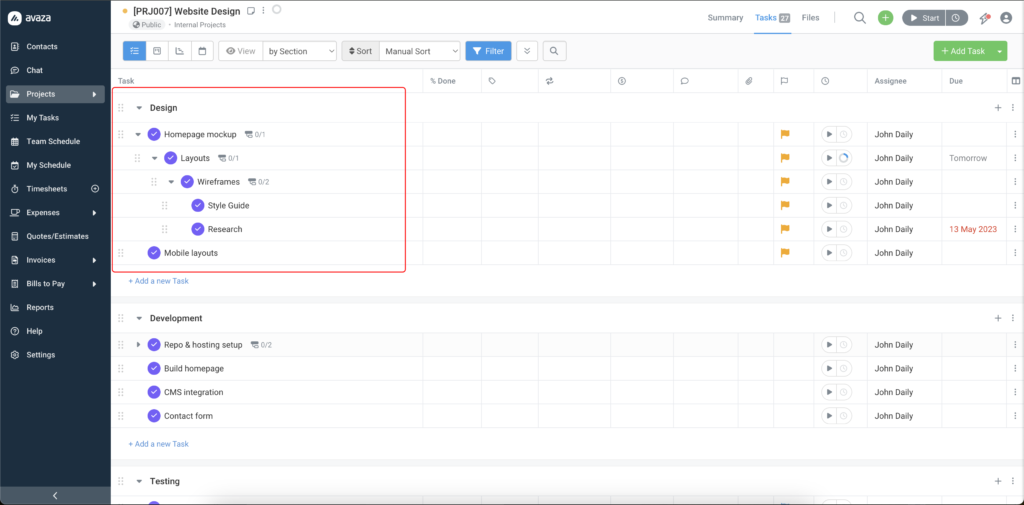
Subtasks are no longer limited to a single level. You can now build a complete task hierarchy as deep as your project requires.
A subtask can have its own subtasks. Those subtasks can have subtasks of their own — and so on. The result is a true task tree that mirrors how complex work actually unfolds.
This means you can break a high-level deliverable into phases, break each phase into workstreams, and break each workstream into individual actions — all within a single connected structure.
Every level in the tree behaves like a proper task, with its own assignee, dates, status, time tracking, comments, and attachments.
How the tree displays
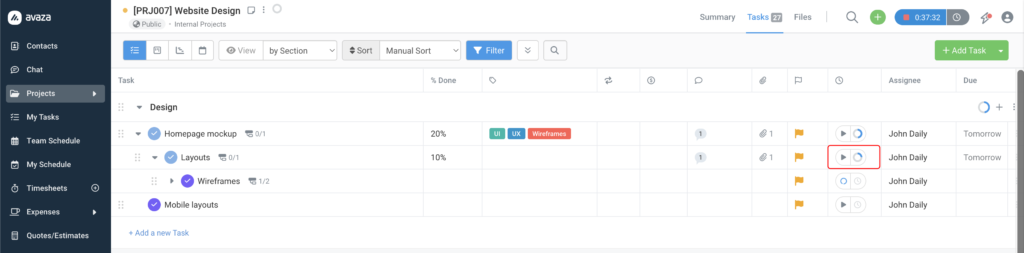
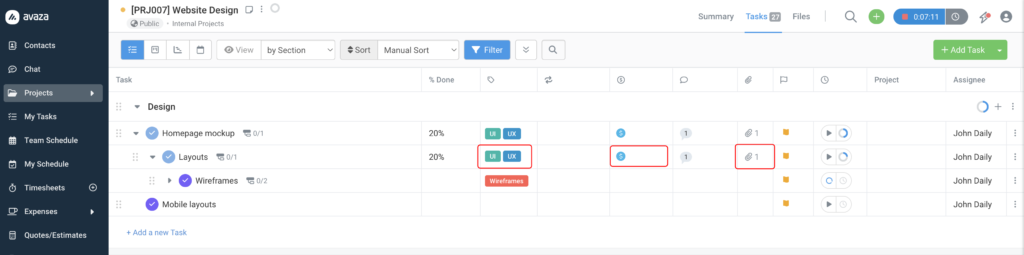
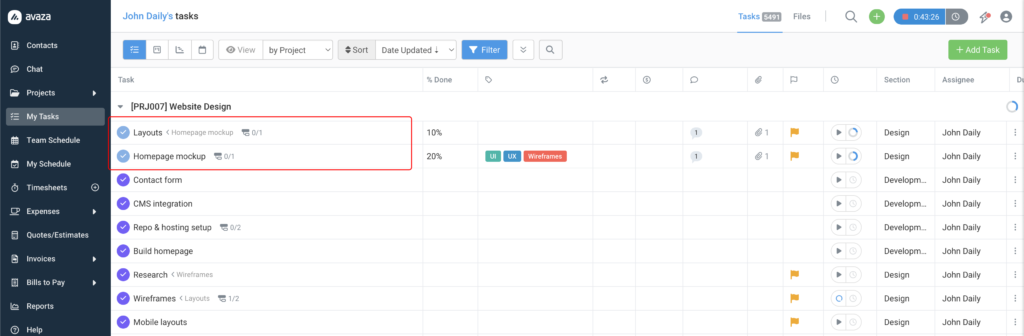
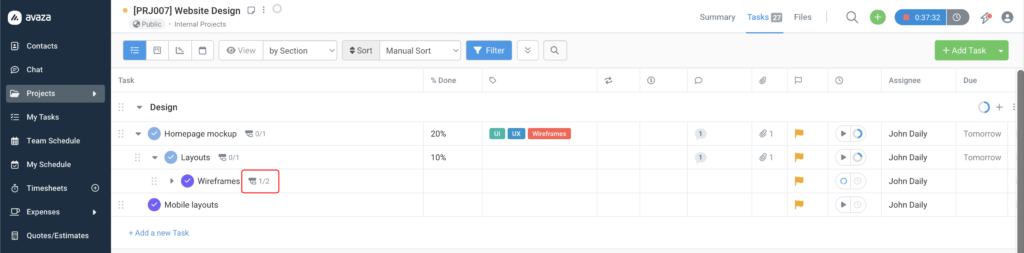
In the Project List view, parent tasks have an expand arrow. Clicking it reveals the immediate children indented beneath. Any child with its own subtasks also has an expand arrow, allowing you to navigate the hierarchy level by level.
A breadcrumb in the task title column shows the immediate parent, so your team always knows where each piece of work sits within the bigger picture.
Progress rolls up through the tree
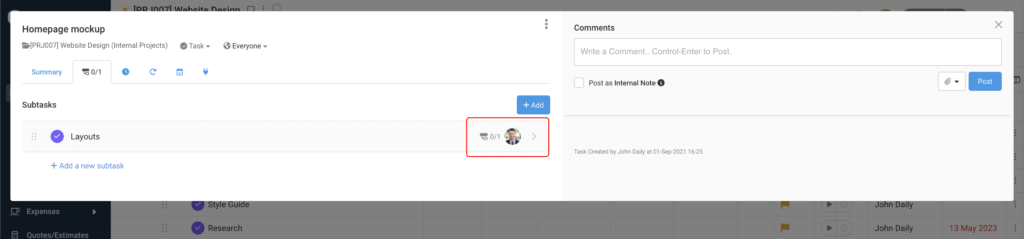
The subtask count badge on each task reflects its direct children. As work is completed, progress becomes visible at the level above — giving you a clear picture of where things stand without needing to drill into every layer.
Drag and Drop — Build Your Task Tree Without Lifting a Finger
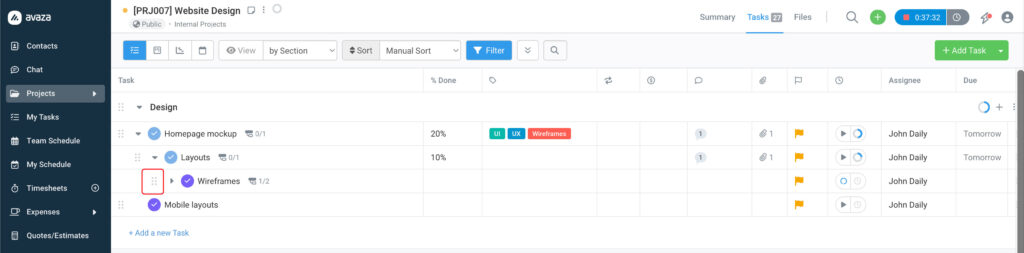
Restructuring your task hierarchy in Avaza is now as simple as dragging and dropping.
You don’t need to open a popup or fill in a form. You can build and reshape your task tree directly from the Project List view.
Making a task a subtask
Drag any task and drop it onto another task to make it a child. The dragged task becomes a subtask instantly. Its breadcrumb updates, and both tasks’ subtask counts adjust automatically.
This works at any level — you can move root tasks into subtasks, or nest subtasks deeper within the tree.
Promoting a subtask back to a root task
Drag a subtask out of its parent group and drop it at the root level to promote it to an independent task. The parent relationship is removed, and the structure updates immediately.
Reordering within the tree
Within any parent, you can drag subtasks up or down to reorder them. Changes are reflected instantly for everyone — no refresh needed.
The tree follows the work
When you move a parent task, its entire subtask tree moves with it. All relationships remain intact — only the position changes.
Assign Subtasks to Team Members
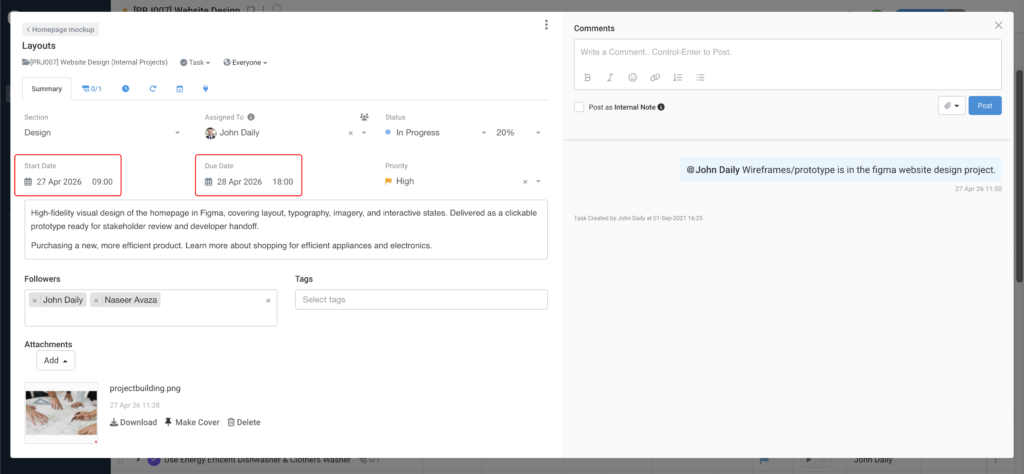
Each subtask now has its own assignee field. Assign subtasks to specific people, notify them instantly, and track who is responsible for what at the most granular level of your project.
Track Time Directly Against Subtasks
Log timesheets and start timers against individual subtasks. Whether you are in the Timesheet module or using the inline timer, you can now track exactly how long each piece of work takes – at the subtask level.
Schedule Resources on Subtasks
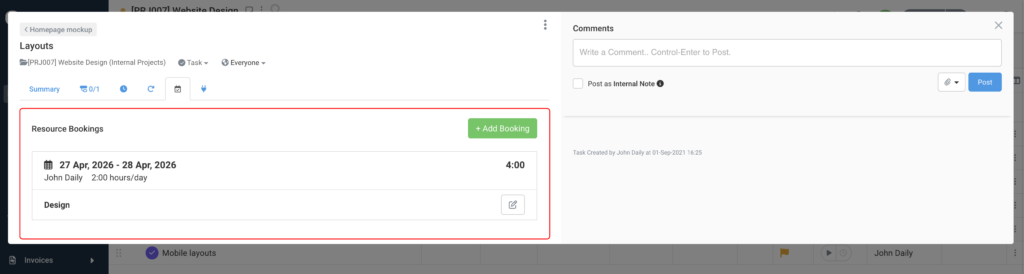
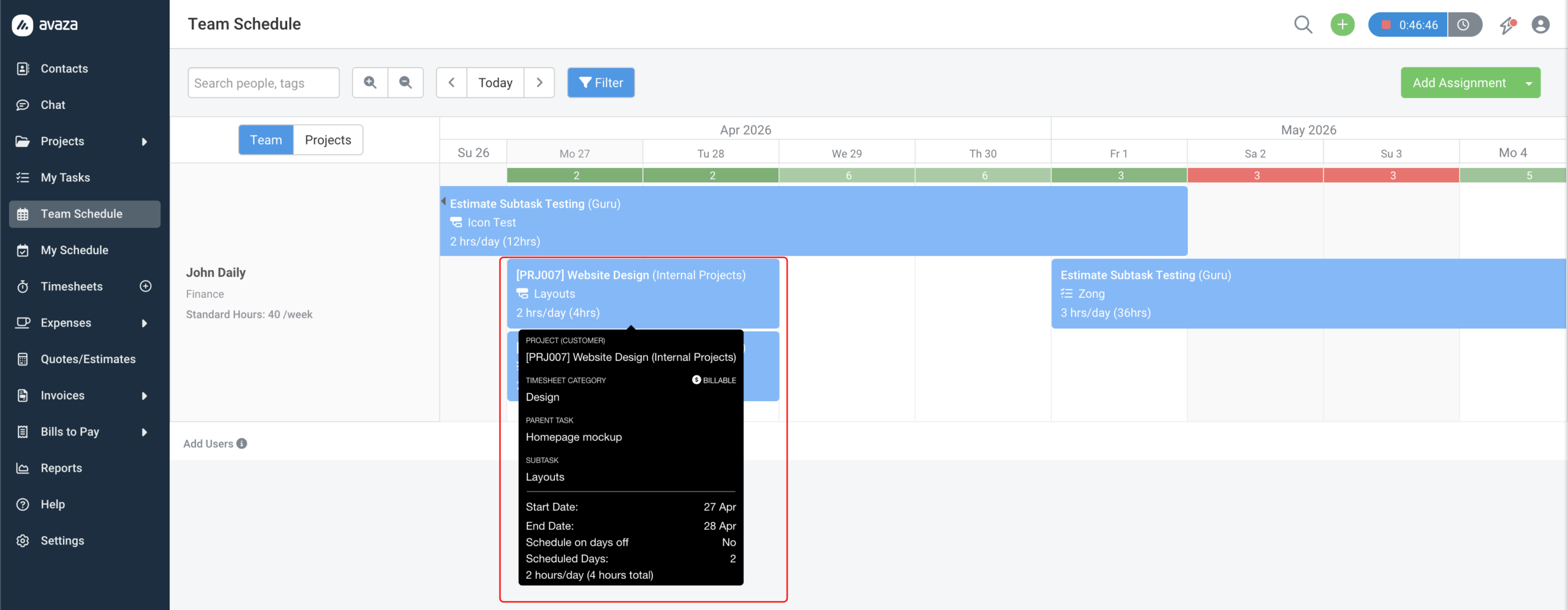
Book your team’s time against subtasks in the Resource Scheduling module. Subtasks appear in the task dropdown alongside their parent task, clearly labelled with a breadcrumb, so bookings are precise.
Comments, Mentions and Discussions
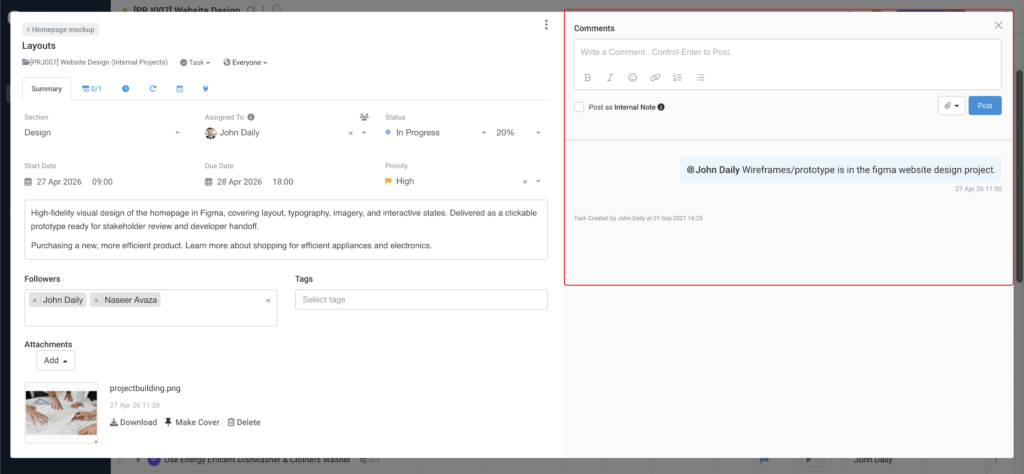
Each subtask has its own Comments panel. Discuss the work with your team, @mention colleagues to loop them in, and keep conversations attached to the exact piece of work they relate to — not buried in the parent task thread.
Descriptions, Tags, Estimates and Attachments
Subtasks now support rich text descriptions, tags for filtering and reporting, effort estimates, and file attachments. In other words, all the same fields you rely on for tasks arw now available on every subtask.
Start and Due Dates
Set a start date and due date on each subtask. Subtasks with due dates appear on calendar views and Gantt charts so your team always knows what is coming up.
Priority
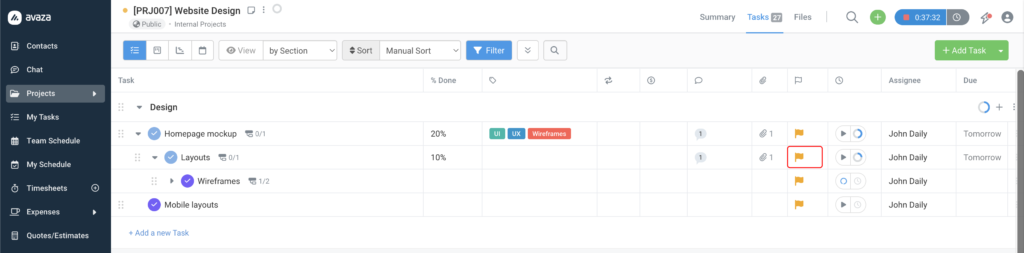
Mark subtasks as Critical, High, Medium, or Low priority. Priority is visible on the project list view, My Tasks, and in filters so high-priority subtasks are never invisible.
How It Looks in Your Workspace
Project List View
Parent tasks now have an expand arrow. Click it to reveal subtasks indented beneath the parent row. Each subtask row shows the same columns as its parent: status, assignee, due date, tags, and timer. Edit subtask fields inline directly from the list without opening a popup.
Project Kanban View
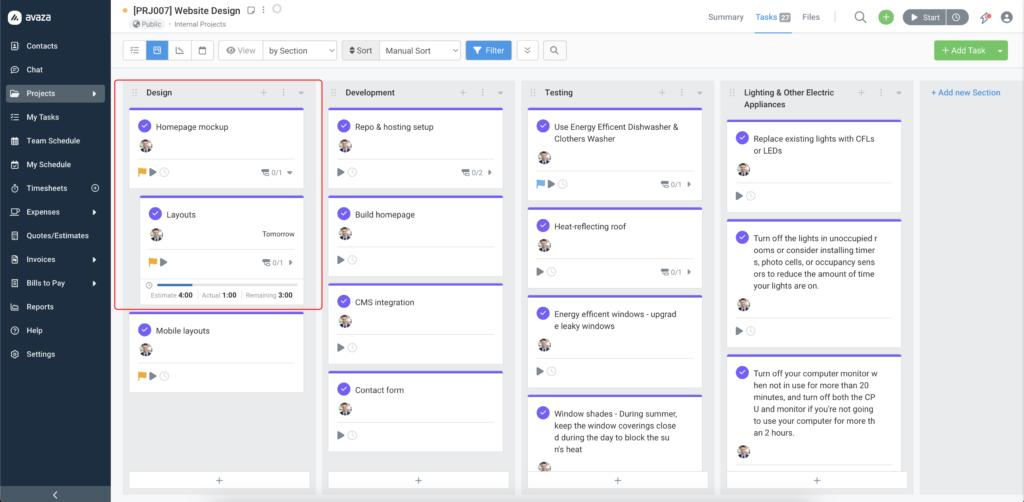
Parent task cards now display their subtasks indented below the parent card. Each subtask card displays the full details similar to the parent task and can be accessed directly from this view.
All Tasks and My Tasks
Subtasks assigned to you appear in your My Tasks views, i.e List, Kanban, Gantt, and Calendar, alongside your root-level tasks. Each subtask shows the parent task name as a breadcrumb so you always know which task it belongs to.
Subtask Edit Popup
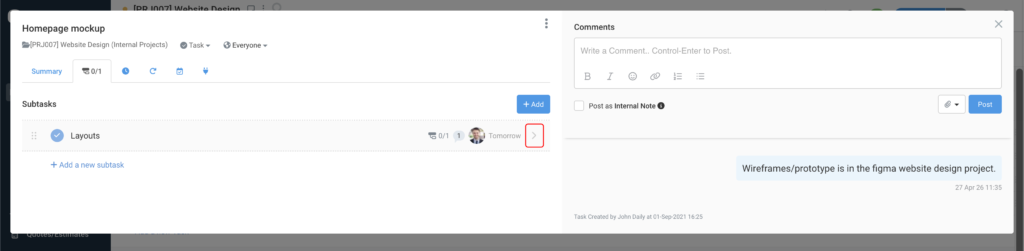
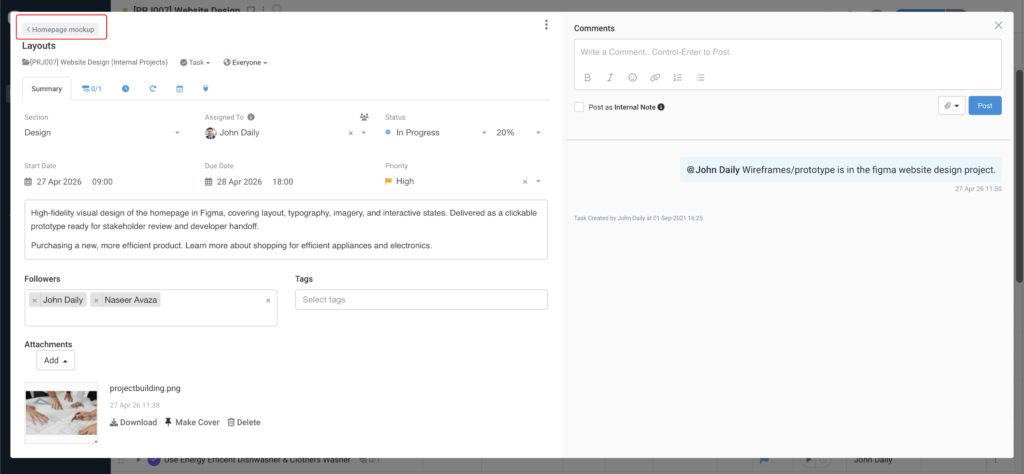
Clicking the arrow on any subtask row opens the full Subtask Edit Popup — a complete task editing experience with all tabs: Summary, Comments, Timesheets, Schedule Settings, and more. A breadcrumb in the header links back to the parent task so you can navigate between them with a single click.
Subtask Progress at a Glance
The subtask count badge on every task now shows how many subtasks are complete out of the total. A badge reading 2/5 means two of five subtasks are done. This updates automatically as your team marks subtasks complete, with no manual refreshing needed.
✅ Progress is always live When a team member changes a subtask status anywhere in Avaza — from the project view, the task popup, or my tasks — the progress counter on the parent task updates immediately. |
Reorganise Your Subtasks Easily
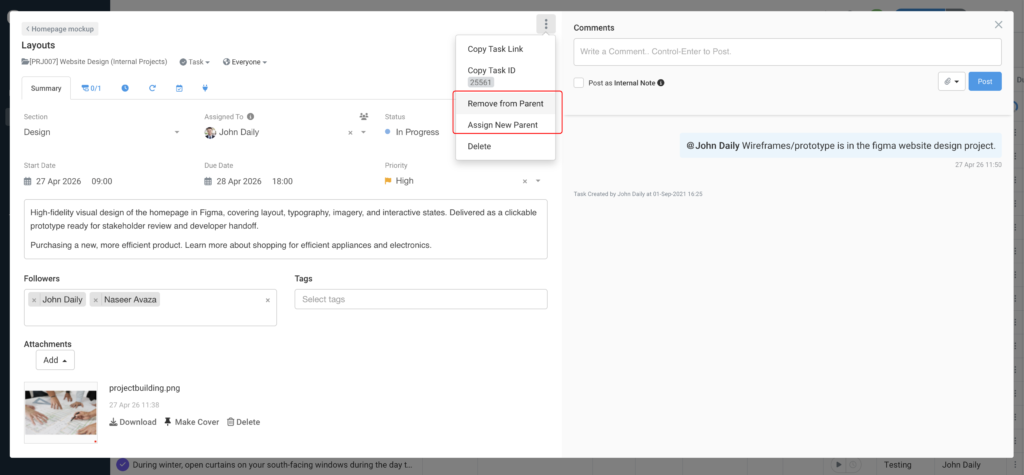
🔀 Assign New Parent
Move a subtask to a different parent task within the same project. Select the new parent from a filtered task picker and the subtask moves instantly, and both parents’ progress counts update automatically.
⬆️ Remove from Parent
Promote a subtask to a standalone root-level task. Use this when a subtask grows into a full task in its own right. It is placed in the same section as its former parent and you can move it from there.
Time Tracking and Scheduling
Every module that involves time or resource planning now supports subtasks fully.
- Timesheets: Task dropdowns in all timesheet entry modals show subtasks grouped under their parent task with a subtask icon and breadcrumb. The Timesheet Day View and Week View both show the subtask icon on rows where time was logged against a subtask.
- Resource Scheduling: Bookings can be linked directly to a subtask. Schedule bars show the subtask title and the mouseover tooltip displays both the parent task name and subtask name as separate labelled fields.
- Invoicing: Uninvoiced time logged against subtasks appears in the Add Time modal when creating an invoice, grouped under the parent task — so nothing falls through the cracks when billing clients.
Recurring Subtasks
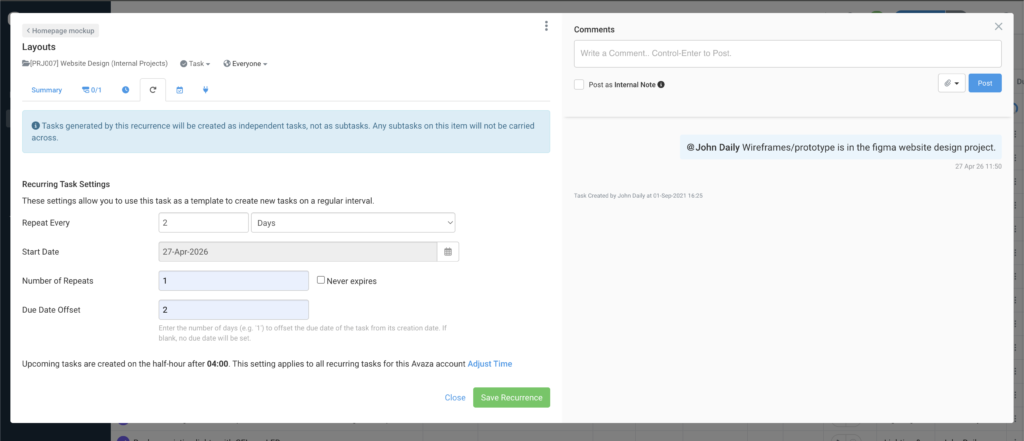
Subtasks support recurring profiles just like regular tasks. Configure a recurrence on any subtask via the Schedule Settings tab in the Subtask Edit Popup.
🔁 One thing to know about recurrence on subtasks
Tasks generated by a recurrence configured on a subtask are created as independent root-level tasks, and not as new subtasks. This is intentional and keeps your recurring work clean. A note on the Schedule Settings tab reminds you of this behaviour when you are in a subtask context.
Tips for Getting the Most Out of the New Subtasks
- Distribute work precisely. Break deliverables into subtasks and assign each to the right person. Give each team member their own subtask with their own due date and status rather than one task assigned to a lead.
- Track time at the subtask level. Log time on the subtask rather than the parent task. Your timesheet reports will then show exactly where time went at the finest level of detail.
- Keep conversations focused. Use subtask comments for subtask-specific discussions. Each subtask has its own comment thread so conversations stay attached to the exact piece of work they relate to.
- Use the progress badge as a signal. A parent task showing 0/8 subtasks complete with a due date tomorrow tells you everything at a glance without opening a single popup.
- Promote subtasks when scope grows. If a subtask grows bigger than expected, use Remove from Parent to promote it to a standalone task rather than leaving it buried.
Frequently Asked Questions
1. What happened to my existing subtasks?
All existing subtasks have been automatically migrated to the new system. Their titles and completion states are preserved. They now appear as proper task records with full capabilities. Nothing was lost and no action is required.
2. Can a subtask have its own subtasks?
Yes. The new system supports multiple levels of hierarchy. A subtask can have its own subtasks and those can have subtasks too. Each level is displayed indented beneath its parent in the project list view.
3. Do subtasks appear in reports?
Yes. The Task List report now includes subtasks with a new optional Parent Task column. The Task Export also includes subtasks with a Parent Task Title column. Time and schedule reports automatically include entries logged against subtasks.
4. Can I invoice time tracked on subtasks?
Yes. Uninvoiced time logged against subtasks appears in the Add Time modal when creating or editing an invoice, grouped under the parent task.
5. Will deleting a parent task delete its subtasks?
Yes. Deleting a parent task deletes all its subtasks. A task cannot be deleted if it or any subtask has linked timesheets, schedule bookings, expenses, or invoiced fixed amounts — you will need to remove those links first.
We built this for teams who do real work in Avaza.
If you have feedback on the new subtask experience, we want to hear it. Use the feedback button inside Avaza or reach out to our support team.
— The Avaza Team